

ServiceBip Call Management
ServiceBip makes a need visible to the person who can answer it. Here are examples for several types of establishments, showing the ServiceBip Call Management software and the ServiceBip Alerts app at work, with call button, watch, light flasher, screen and phone.
The demo in 75 seconds. One press, a card on screen, a watch, a phone, a call taken. Footage of the real software, with made-up button names.
How it works
One press
A wireless call button, fixed to a wall or placed on a stand, sends the call by direct radio, without cabling.
Everyone receives
The call is received by every paired receiver: ServiceWatch watch, ServiceLight flasher, the receiver plugged into the desk computer. The button name and the key label tell each person where the call comes from and what it is about.
Someone answers
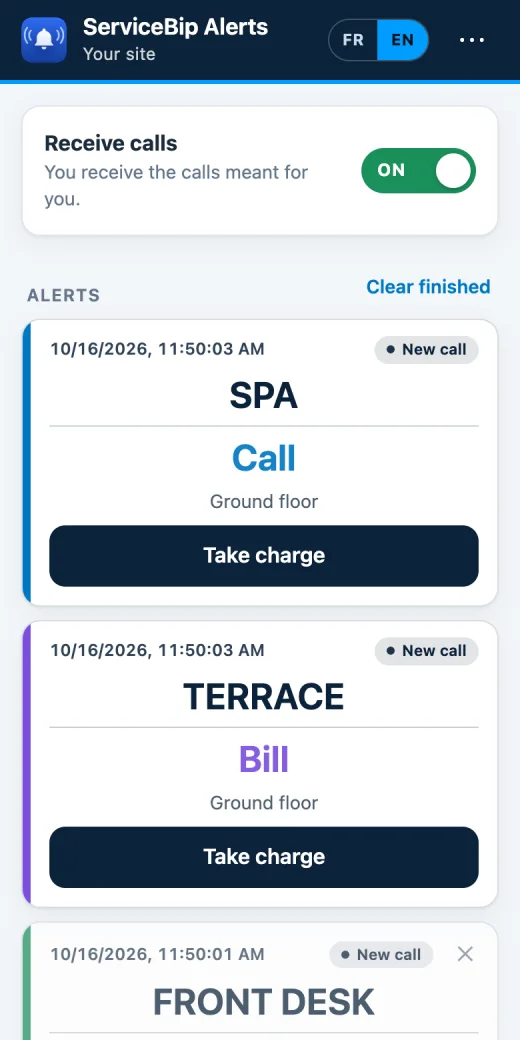
The call shows in the ServiceBip Call Management software (on Mac or Windows PC), on the watch, or on the phone with the ServiceBip Alerts app (optional). Someone clicks “Take charge” and everyone sees it.
What the software shows
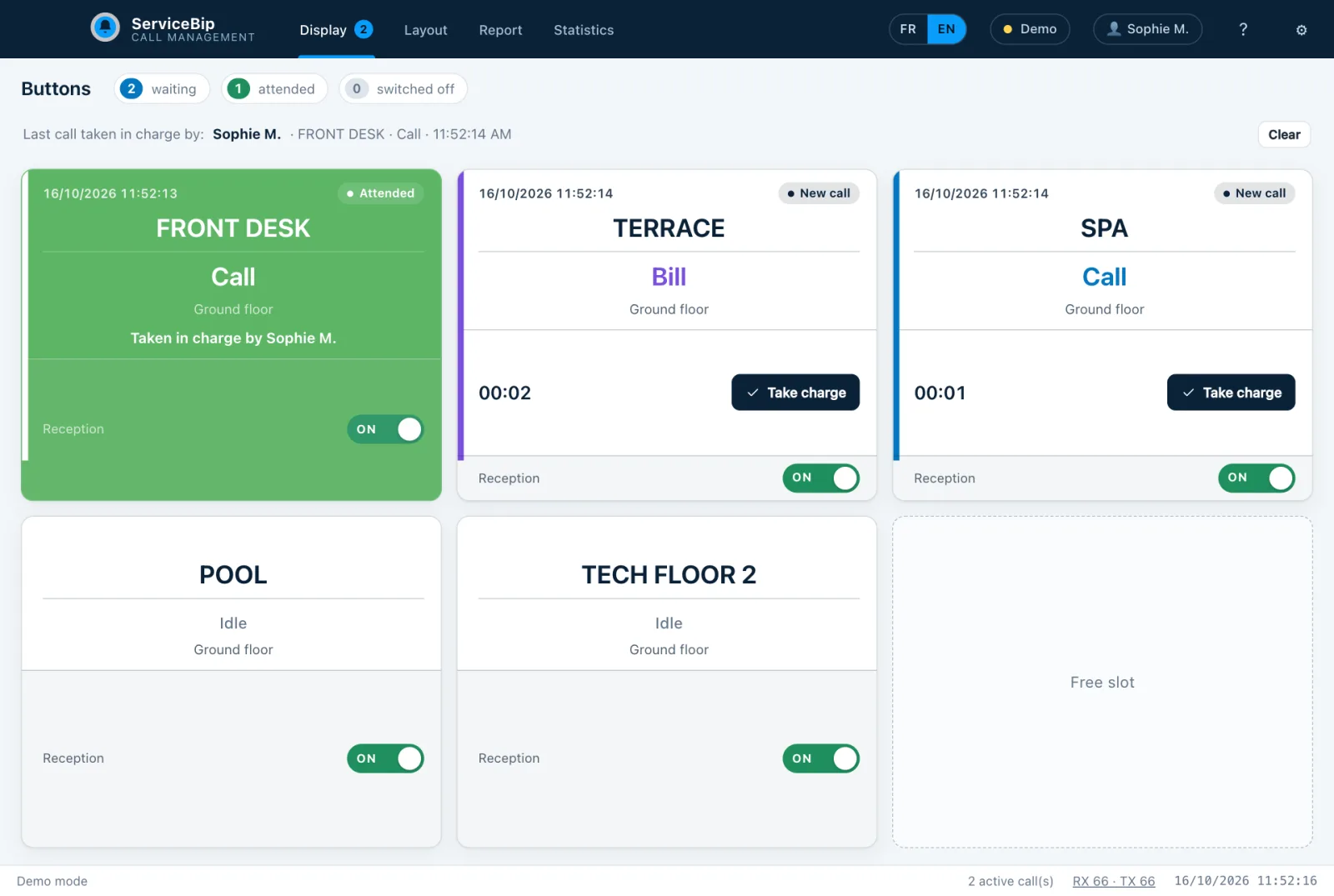
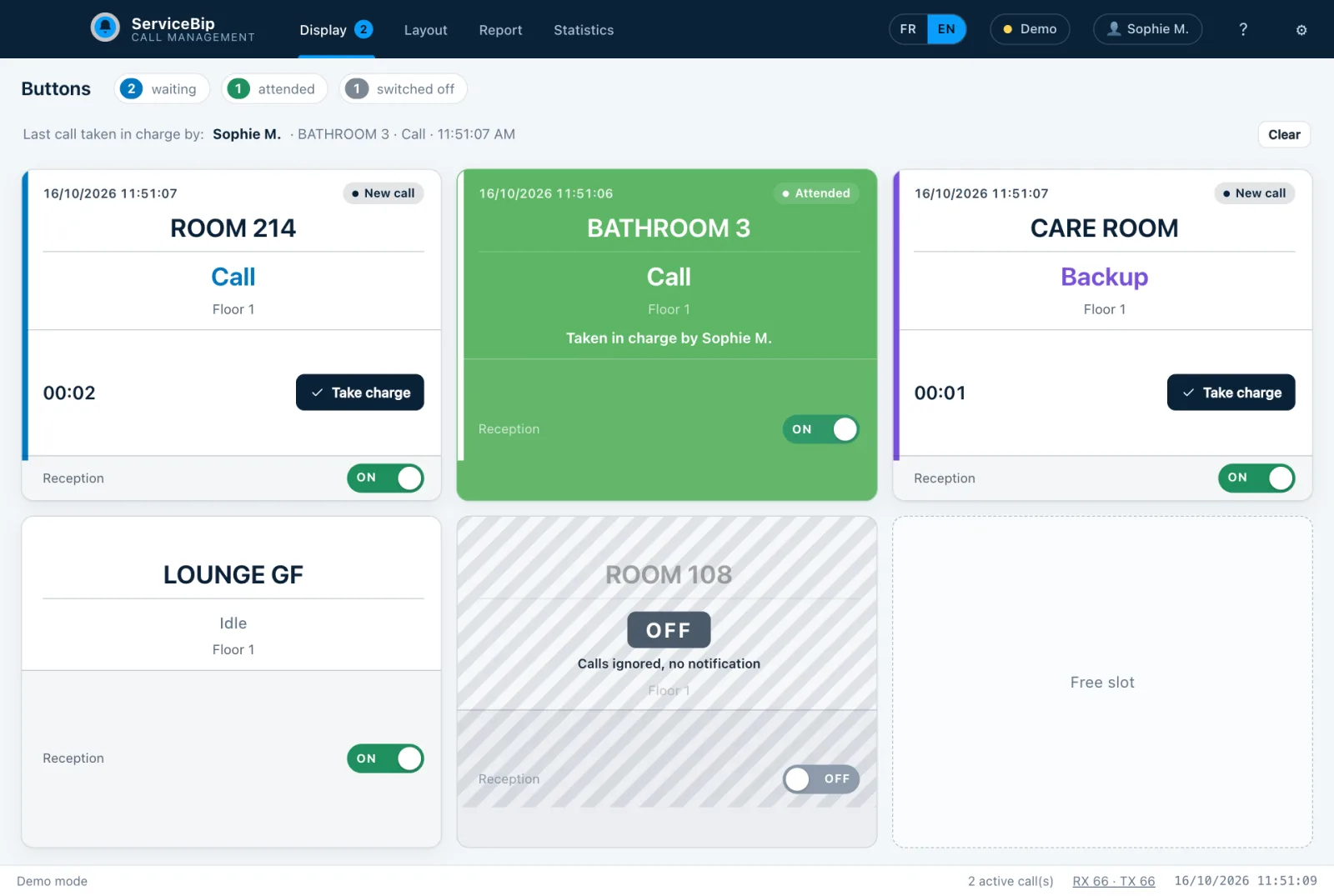
- A wall of buttons on screen: each registered button has its own card with its name and, when it calls, the call type flashing. A “Free slot” box waits for a future button.
- Colours per call type, adjustable.
- An escalation from yellow to orange to red if nobody answers (default delays, adjustable).
- “Taken by…”: the card turns green and the person’s name appears; “Last call taken by…” stays on the button’s card.
- An ON / OFF switch per button (for example an empty room) and a plan where the calling button’s icon flashes.
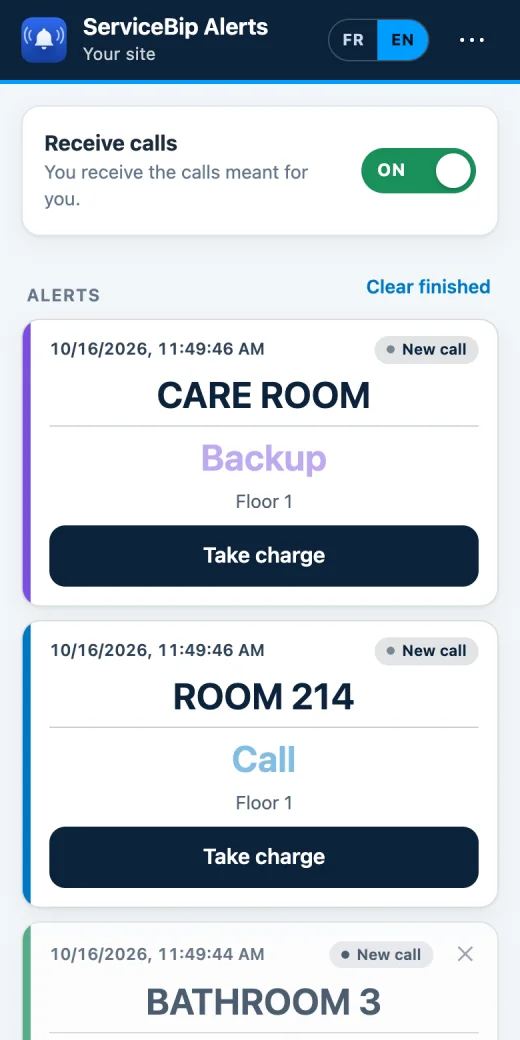
- On the phone, with ServiceBip Alerts: notification, list of calls, “Take charge” button (optional app, optional subscription).
A few example establishments
Pick a type of establishment to see the example setup, what the team sees and the suggested labels.
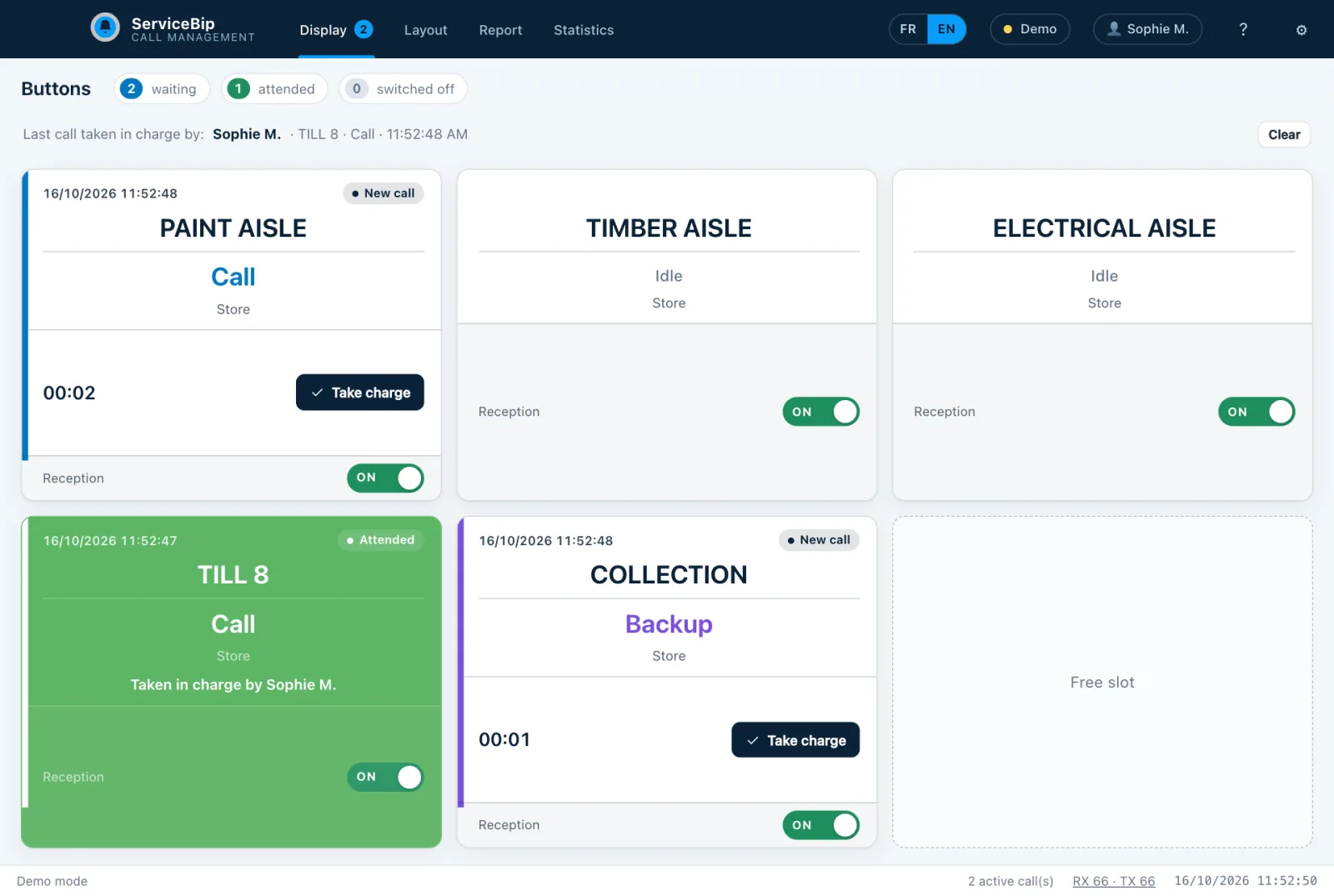
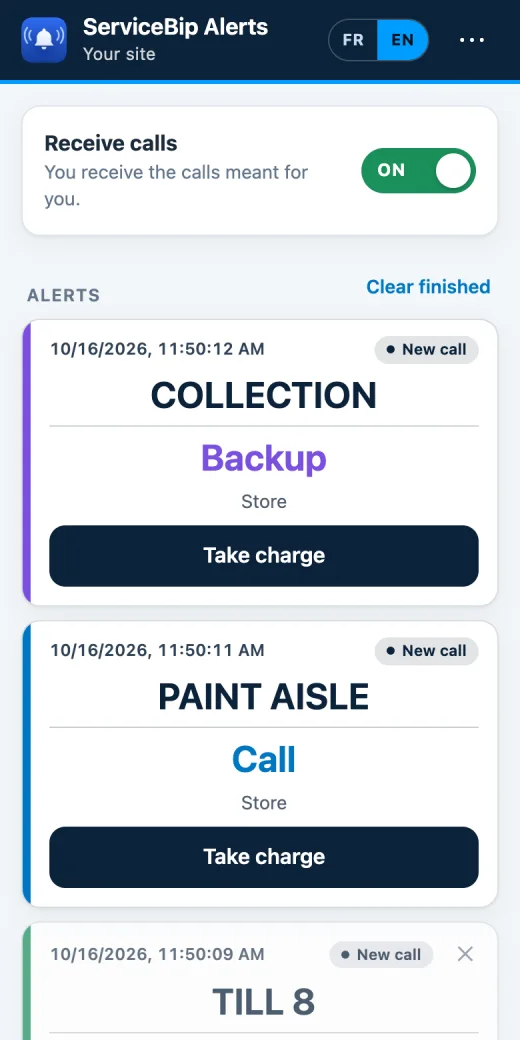
Software screen (made-up data) and the ServiceBip Alerts phone app
Large store: the right advice, in the right aisle
In a large DIY store, a customer waiting for advice in the paint, timber or electrical aisle does not always see a salesperson. Advisers are spread over large, sometimes noisy areas, and a checkout or a collection point may need backup.
INSTALLATION EXAMPLE
- Advice-heavy aisles (paint, timber and cutting, tools, electrical, garden): one 2-key button (call and cancel) fixed in the aisle or on a stand, named “PAINT AISLE”, “TIMBER AISLE”, “ELECTRICAL AISLE”.
- Services (collection, after-sales, cutting): one 3-key button named “COLLECTION” or “AFTER-SALES”: Call, Backup, cancel.
- Checkouts: one 1-key button per checkout, named “TILL 8”, to call backup, a manager or the security officer. It is not an SOS button.
- Advisers and aisle managers: one ServiceWatch per person in the area. Every watch receives the call; the button name tells the team concerned to go, and the others that they do not need to move. The aim: fewer public-address announcements.
- Security officer: a watch that displays “TILL 8”: the officer knows where to go.
- Security desk or front desk: a computer (Mac or Windows PC) with the software: wall of buttons, a store plan, a timestamped call history.
- Timber aisle, cutting station, stockroom, dock: a ServiceLight flasher where noise drowns out ringtones.
- Second-level option: if the officer finds a situation that calls for an outside alert, they can trigger a ServiceSOS from their position or the security desk (GSM network, separate from the radio used by the rest of the system). It is never installed at the first point of contact, nor at a checkout.
WHAT THE TEAM SEES
- On the watch: “PAINT AISLE” or “TILL 8”, with the key’s task.
- At the desk: the flashing card with the aisle name, the time and the waiting time, then “Taken by…”.
- On the store plan: the calling aisle’s icon flashes.
- In a noisy area: the light in the chosen colour.
WHAT IT CHANGES
- A waiting customer no longer has to leave the aisle to find someone: the call is visible to the team.
- At the checkout, a call is made without leaving the post and shows on the security officer’s watch with the checkout name.
- Statistics (number of calls, handling rate, average response time, by button or by person) provide a basis for adjusting aisle coverage.
EXAMPLE OF LABELS AND COLOURS
| Key label | Use in the example |
|---|---|
| Call | Request for advice, or for a manager at the checkout |
| Backup | Need for an extra person at collection, after-sales or cutting |
| Cancel | Withdraw a call made by mistake (key function) |
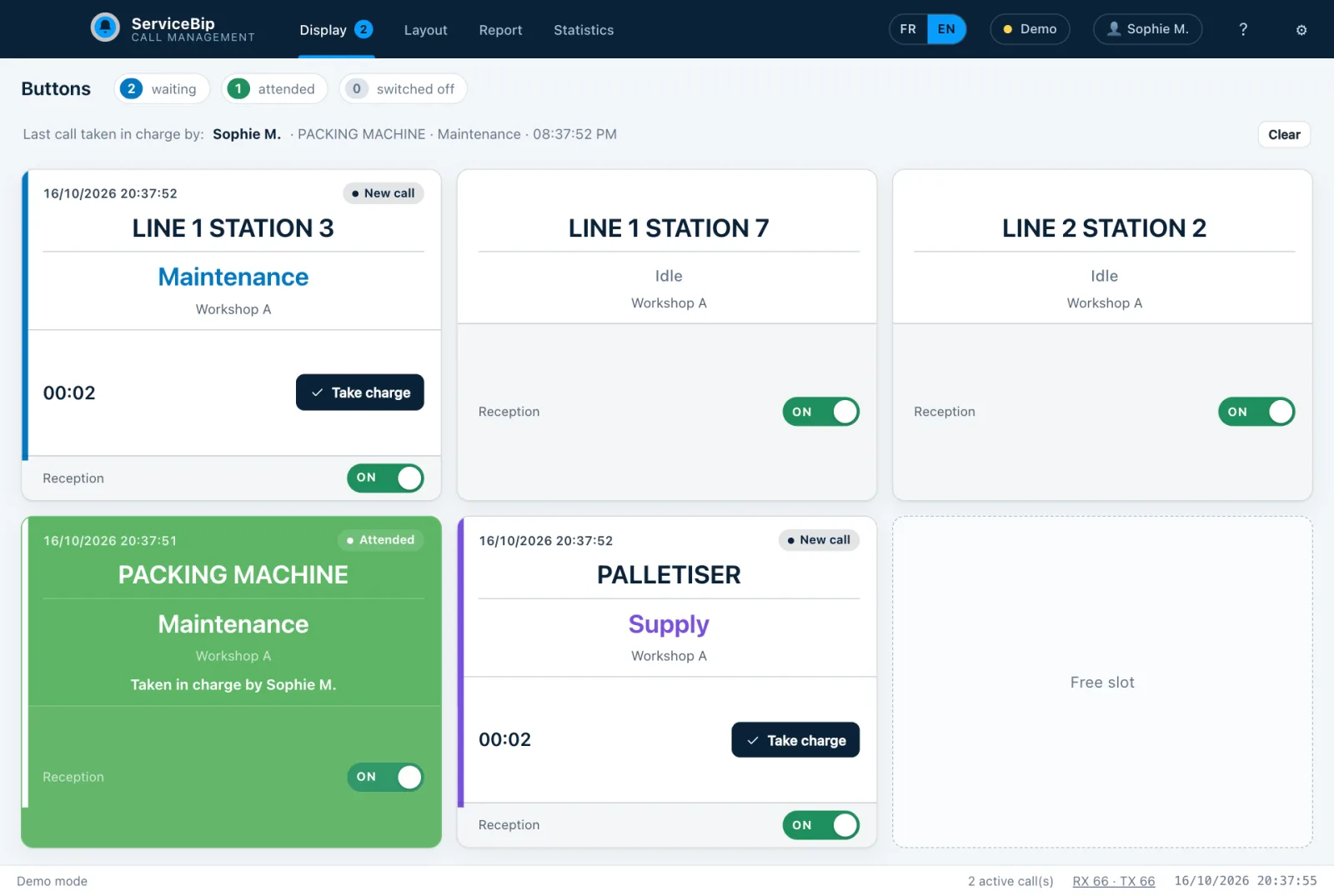
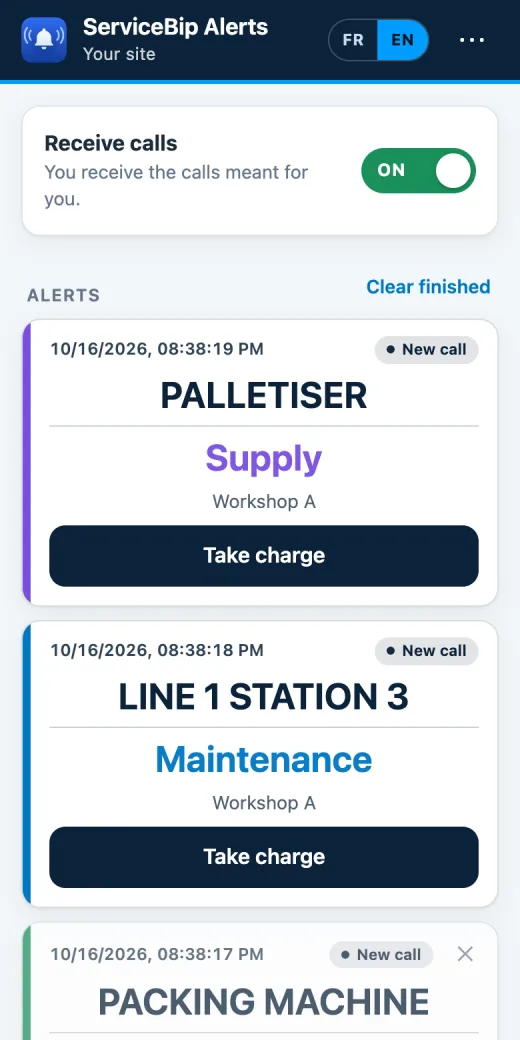
Software screen (made-up data) and the ServiceBip Alerts phone app
Production line: make a need for help visible without leaving the station
On a production line, an operator who needs a setter, maintenance, a forklift driver or a crane operator often has to leave the station to look for them, or go through the team leader. Response teams are spread over the workshop and the warehouse, in areas that are sometimes noisy. The point is that the need is seen straight away by the person who can go there.
INSTALLATION EXAMPLE
- Workstations on the line: one 3-key button (Maintenance, Supply, cancel), fixed at the station or placed on a stand within the operator’s reach, named “LINE 1 STATION 3”, “LINE 1 STATION 7”, “LINE 2 STATION 2”.
- Key machines (packing, palletising): a button named “PACKING MACHINE” or “PALLETISER”, with the same key labels as on the line: labels are set once for the whole site.
- Maintenance, setters and forklift drivers: one ServiceWatch per person. Every watch receives the call; the button name tells where to go, and the key label (Maintenance or Supply) tells the team concerned to go, and the others that they do not need to move. Buzzer, LED or vibration of your choice.
- Supervision desk (team leader, production manager): a computer (Mac or Windows PC) with the software and its USB receiver: wall of buttons, a plan of the workshop where the calling station’s icon flashes, a timestamped history, statistics by button or by person. If nobody answers, the card turns from yellow to orange to red.
- Very noisy areas: a ServiceLight flasher, its colour matching the call type (the light gives the type, not the station number), where a ringtone cannot be heard.
- Large workshop or warehouse: radio coverage is checked on site, depending on partitions, machines and racking; a ServiceAmpli booster can complete the installation. Receivers are installed away from electrical sources and microwave ovens.
- Maintenance on call, workshop manager: the ServiceBip Alerts app on their phone, to follow calls away from the supervision desk (optional).
- Second-level option: if the team leader finds a situation that calls for an outside alert, they can trigger a ServiceSOS from their position or the supervision desk (GSM network, separate from the radio used by the rest of the system). It is never installed at the first point of contact. For isolated areas or off-hours shifts, ServiceBip also announces a lone-worker protection function (PTI/DATI in France) with a ServiceGPS tracker: how to frame it is studied case by case.
WHAT THE TEAM SEES
- On the watch: “LINE 1 STATION 3” with the key’s task (Maintenance or Supply).
- At the supervision desk: the flashing card with the station name, the call type, the time and the waiting time, then “Taken by…”.
- On the workshop plan: the calling station’s icon flashes.
- In a noisy area: the light in the colour of the call type.
WHAT IT CHANGES
- The operator no longer has to leave the station to look for someone, or go through the team leader: one press makes the need visible.
- Maintenance, setters and forklift drivers see the station and the nature of the need (Maintenance, Supply) before moving.
- The history and the statistics (number of calls, handling rate, average response time, by button or by person) provide a basis for discussing how the line is organised.
EXAMPLE OF LABELS AND COLOURS
| Key label | Use in the example |
|---|---|
| Maintenance | Breakdown, adjustment or technical help requested at the station |
| Supply | Supply or forklift visit (components, pallets) |
| Cancel | Withdraw a call made by mistake (key function) |
Software screen (made-up data) and the ServiceBip Alerts phone app
Hotel: a guest calls, the team sees it
A guest reaches a reception desk that is empty for a moment, or needs a service at the spa, the pool or the terrace. The team is spread between floors, kitchen, laundry and back office, and nobody is sure they heard.
INSTALLATION EXAMPLE
- Night reception and front desk: one 1-key button near the desk, named “FRONT DESK”. At night, the call reaches the night porter’s watch.
- Guest rooms: a button named “ROOM 12” in rooms that have one.
- Spa, pool, gym: one 2-key button (call and cancel) per area, named “SPA” or “POOL”.
- Bar, terrace, breakfast room: one 3-key button named “TERRACE”: Call, Bill, cancel.
- Floors, linen room: a button “TECH FLOOR 2” to report a technical need to maintenance.
- Team: a ServiceWatch for the night porter, the housekeeper and the maintenance technician. All of them receive every call: the button name tells who goes.
- Back office or reception: a computer (Mac or Windows PC) with the software: wall of buttons, plan of the ground floor and the floors, history.
- Laundry, basement, kitchen: a ServiceLight flasher, useful where a ringtone cannot be heard.
WHAT THE TEAM SEES
- On the watch: the button name (“TERRACE”) and the key’s task (Call, Bill).
- At the back office: a card that flashes with the call type, the area and the waiting time; if nobody answers, it changes colour as minutes go by.
- In a noisy area: the light in the chosen colour.
- On the phone: the notification, then the name of the person who took the call.
WHAT IT CHANGES
- The guest does not have to look for someone: one press makes the request visible to the team.
- The team sees the place and the nature of the request (Call, Bill) before moving.
- The call report (response time, button, type, person) is available to the hotel’s operations.
EXAMPLE OF LABELS AND COLOURS
| Key label | Use in the example |
|---|---|
| Call | Request for presence (front desk, spa, pool, terrace) |
| Bill | Request for the bill at the bar or terrace |
| Cancel | Withdraw a call made by mistake (key function) |
Software screen (made-up data) and the ServiceBip Alerts phone app
Care home: make a call visible to the care team
In a home for older people, a resident may struggle to be heard or to speak up. The team is spread over several floors: the point is that a call is seen quickly by someone who can walk over.
INSTALLATION EXAMPLE
- Resident side (bedrooms, bathrooms): the ServiceNurse call pear presented on the Care home Solutions page. Here, one receiver per room named “ROOM 214” and the bathroom “BATHROOM 3”.
- Staff side (care room, linen room, dining room): one 3-key ServiceBip button named “CARE ROOM”: Call, Backup (to ask for one more colleague), cancel a call made by mistake.
- Living areas: a button named “LOUNGE GF” or “GARDEN”.
- Team: one ServiceWatch per member of the floor team. Every watch receives every call; if the name shows another floor, the team sees it too and knows it does not need to go.
- Nurses’ station: a computer (Mac or Windows PC) with the software and its USB receiver: wall of buttons, plan of each floor, adjustable ringtone. If nobody answers, the card turns from yellow to orange to red.
- Corridors: one ServiceLight per floor, its colour matching the call type; adjustable sound, including silent.
- Night: a watch set to vibrate for the night carer and the ServiceBip Alerts app on the relevant phones. The “generic message” mode avoids showing a room or a person’s name in notifications.
- Empty room: the button’s switch is set to OFF in the software.
WHAT THE TEAM SEES
- On the watch: the name (“ROOM 214”) and the key’s task.
- At the nurses’ station: a “ROOM 214 / Call” card that flashes, with the time, the waiting time and “Take charge”, then the green card “Taken by…”.
- In the corridor: the light in the colour of the call type.
- On the phone: the notification, the list of calls, “Taken by…” once a colleague has answered.
WHAT IT CHANGES
- A resident who can no longer call out can make a need visible by pressing a button.
- The team knows where the call comes from and what type it is, without going back to the station to find out.
- Everyone can see who has taken the call, and the history keeps the calls, with the report’s filters and exports.
EXAMPLE OF LABELS AND COLOURS
| Key label | Use in the example |
|---|---|
| Call | Ordinary need, resident side or staff side |
| Backup | Need for one more colleague |
| Cancel | Withdraw a call made by mistake (key function) |
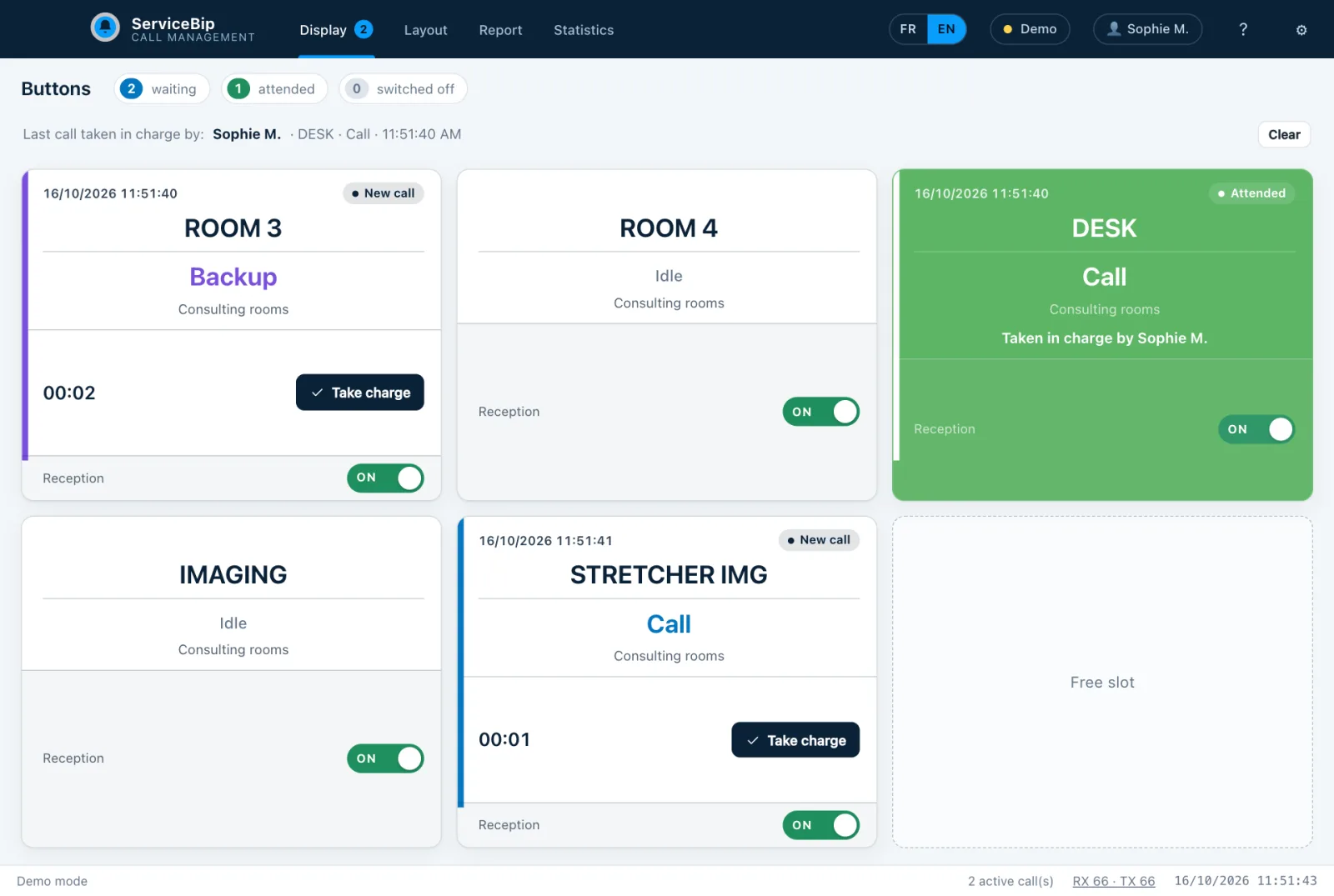
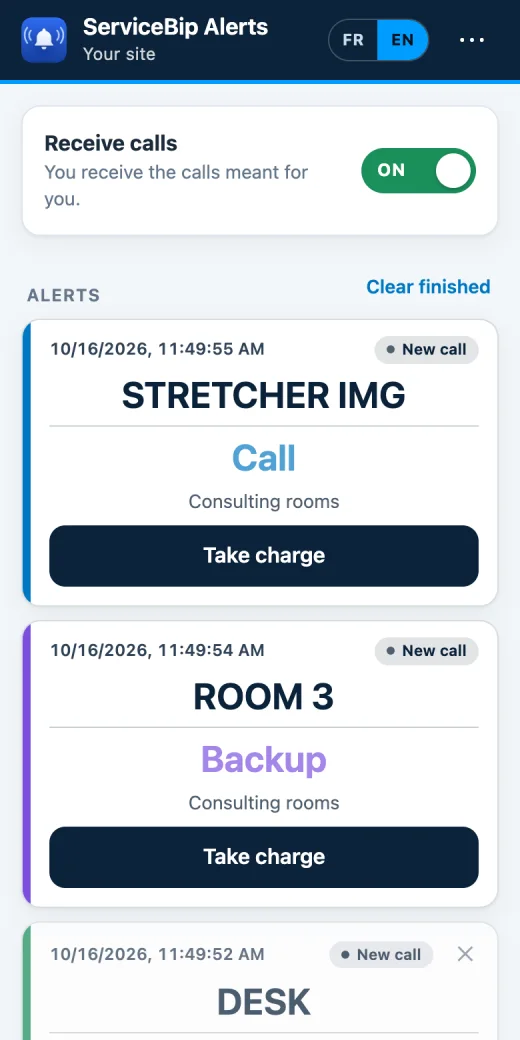
Software screen (made-up data) and the ServiceBip Alerts phone app
Clinic and hospital: a backup or a stretcher, visible straight away
In a healthcare facility, many internal calls are still made by shouting, by landline, or by going to find someone. Teams move from one room to the next, and a colleague does not always know they are needed.
INSTALLATION EXAMPLE
- Consulting and examination rooms: one 3-key button per room, named “ROOM 3”: Call, Backup, cancel.
- Reception and waiting room: one 1-key button on the front desk, named “DESK”, to call someone when the desk is empty.
- Imaging, day surgery, technical services: one 2-key button per department, named “IMAGING”.
- Patient transport: a button “STRETCHER IMG” in each requesting department; the porters wear a ServiceWatch. The other watches also receive the call, but the button name tells them that only the porters go.
- Teams: one ServiceWatch per nurse or care assistant.
- Nurses’ station or secretariat: a computer (Mac or Windows PC) with the software: wall of buttons, plan of the department, statistics and call report.
- Noisy area: a ServiceLight flasher, useful when sound is not enough.
- Ward manager: the ServiceBip Alerts app on their phone, to see waiting calls and the one being handled.
WHAT THE TEAM SEES
- On the watch: “ROOM 3” with the key’s task (Call, Backup).
- At the station: the “ROOM 3 / Backup” card flashing, the waiting time, then the green card “Taken by…”.
- On the department plan: the calling room’s icon flashes with the call type.
- For a porter: “STRETCHER IMG” on the watch, without going through a switchboard.
WHAT IT CHANGES
- An internal call no longer has to be shouted or passed by word of mouth: it appears on every paired receiver.
- The button name and the key label let each profile (carer, porter, secretariat) recognise what concerns them.
- The report and the statistics (number of calls, handling rate, average response time) give a basis for discussing how the department is organised.
EXAMPLE OF LABELS AND COLOURS
| Key label | Use in the example |
|---|---|
| Call | Request for presence or ordinary help |
| Backup | Need for an extra colleague in the room |
| Cancel | Withdraw a call made by mistake (key function) |
Let’s talk about your establishment
Tell us where your teams need to see a call, and we will show you the software on your case.
The scenarios on this page are examples of organisation, not real installations. Direct radio link without cabling or subscription, and ease of installation, are features presented by ServiceBip; coverage of a site is checked on site. Phone notifications are an option that requires an Internet connection on the computer side.